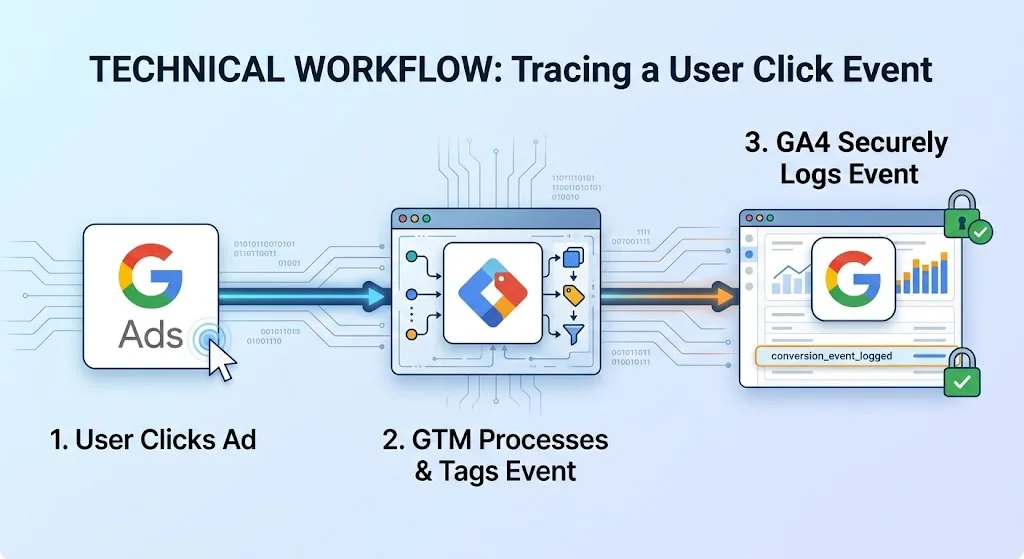
If your Google Ads campaigns are running but you're not sure which clicks are turning into real customers, you're flying blind. For small business owners in Orlando, Florida, that's a costly problem. Without accurate conversion tracking, you could be spending hundreds of dollars a month on ads that don't deliver, and you'd never know it.
REK Marketing and Design helps Orlando businesses set up and manage Google Ads campaigns that actually produce results. Call us at (407) 500-0102 to get a free ad audit today.
This guide walks you through the full Google Ads conversion tracking setup, step by step, including how to use GA4 and Google Tag Manager.
What Is Google Ads Conversion Tracking, and Why Does It Matter?
Google Ads conversion tracking is a free tool that records what happens after someone clicks your ad, such as a purchase, phone call, form submission, or page visit. Without it, Google can't optimize your bids or ad delivery for the outcomes that actually grow your business.
Here's why this matters for local businesses: Google's Smart Bidding strategies, like Target CPA and Maximize Conversions, rely entirely on conversion data to make decisions. Feed them bad data, and they'll spend your budget in the wrong places. Feed them nothing, and they're essentially guessing. For a business in Dr. Phillips or Thornton Park spending $1,500 to $3,000 per month on ads, that's a serious risk.
Accurate Google Ads conversion tracking setup in Orlando, Florida means your campaigns learn faster, your cost per lead drops, and your return on ad spend climbs over time.
Step 1: Define Your Conversion Goals
Before you touch any settings, decide what counts as a conversion for your business. The three most common types for small businesses are:
- Leads: Form submissions, contact page visits, or quote requests
- Sales: Completed purchases or checkout confirmations on an e-commerce site
- Calls: Phone calls from your ads or from your website
Be specific. A roofing company might count a "Get a Free Estimate" form submission as its primary conversion. A dental practice might prioritize phone calls. Picking the right goal upfront determines how well your data reflects actual business outcomes.
Avoid tracking every possible action as a conversion. If you mark a homepage visit and a quote form submission as equal conversions, your data gets diluted and your Smart Bidding goes sideways.
Step 2: Set Up the Google Tag on Your Website
The Google Tag (formerly known as the Global Site Tag or gtag.js) is the base code that enables conversion tracking across your site. You have two ways to install it: directly in your website's HTML, or through Google Tag Manager (GTM).
We strongly recommend using Google Tag Manager. Here's why: GTM lets you add, edit, and manage tracking codes without touching your website's source code every time. For small business owners without a developer on call, this saves time and reduces the chance of breaking something on the site.
Installing via Google Tag Manager
- Create a free GTM account at tagmanager.google.com if you don't have one
- Create a new container for your website and copy the two GTM code snippets provided
- Paste the first snippet inside the <head> tag of every page, and the second snippet immediately after the opening <body> tag
- In GTM, go to Tags, click "New," and choose "Google Ads Conversion Tracking" as the tag type
- Enter your Google Ads Conversion ID and Conversion Label (found in your Google Ads account under Tools > Conversions)
- Set the trigger to fire on your thank-you page URL or specific button click
- Submit and publish your GTM container
Connecting GA4 to Google Ads
If you're using Google Analytics 4, you can import GA4 conversions directly into Google Ads. This is a cleaner setup for many small businesses because GA4 tracks user behavior across sessions, not just the final click.
To link them:
- In GA4, go to Admin > Google Ads Links and connect your Ads account
- In Google Ads, go to Tools > Conversions > Import, then select "Google Analytics 4 properties."
- Choose the conversion events you want to import, such as "generate_lead" or "purchase."
- Click Import and continue
Once linked, GA4 sends conversion data back to Google Ads automatically. This approach also gives you richer reporting on how users behave before they convert.
Step 3: Configure Specific Conversion Actions in Google Ads
With your tag in place, go to your Google Ads account and set up each individual conversion action.
- Navigate to Tools and Settings > Measurement > Conversions
- Click the blue "+" button to create a new conversion
- Select your conversion source: Website, Phone calls, Import (from GA4), or App
- For website conversions, choose a category (Lead, Purchase, etc.) and assign a value if applicable
- Set the Count setting: use "One" for leads (so a single form submission counts once per click) and "Every" for sales
- Set your Conversion Window, which is how long after a click a conversion can still be credited. For most service businesses, 30 days is a reasonable window. For longer sales cycles, extend this to 60 or 90 days.
- Enable View-through conversions if you're running display ads and want to count users who saw but didn't click your ad before converting
One setting most small business owners overlook is Primary vs. Secondary conversion status. Set your most important action, like a form submission or phone call, as Primary. Set softer signals, like a page view, as Secondary. Google's bidding algorithms only optimize for Primary conversions, so this distinction directly affects where your budget goes.
For Orlando businesses running our PPC & Local Service Ads campaigns, this step alone often reduces wasted spend by 20% to 35% in the first 60 days.
Step 4: Verify and Troubleshoot Your Tracking
Setting up conversion tracking and verifying it are two different things. Don't assume it's working. Test it.
Use the Google Tag Assistant Chrome extension to confirm your Google Tag or GTM container is firing correctly on every page. It shows you in real time which tags are active, which are misfiring, and why.
Check for duplicate tracking. This is one of the most common issues we see on accounts we audit. If you've installed both a hardcoded Google tag in your site's HTML and a GTM-based tag, you may be counting every conversion twice. Duplicate conversions inflate your data, make your campaigns look more effective than they are, and throw off Smart Bidding.
Confirm conversions in Google Ads. After completing a test conversion (for example, submitting your own contact form), wait 3 to 6 hours, then check Tools > Conversions to see if the action was recorded. The status column should show "Recording conversions."
Check your GA4 DebugView. In GA4, go to Admin > DebugView. With GTM's Preview mode active in another tab, trigger your conversion event and watch the data appear in DebugView in real time. This confirms the event fires and is named correctly before it ever reaches Google Ads.
If you're running Local Service Ads alongside your search campaigns, note that LSA tracks leads separately through Google's own system. You don't need to set up conversion tracking for LSA the same way. However, making sure your LSA and Google Ads accounts are linked in your account settings is a step many businesses in Lake Nona and the wider Orlando metro skip, which limits your overall reporting visibility.
Advanced Tips: Optimizing for Google's December 2025 Update and AI Overviews
Google's December 2025 core update placed a heavier weight on content and landing page relevance as signals that influence ad Quality Scores. A higher Quality Score means lower cost-per-click, which directly affects your ad spend efficiency.
A few things worth doing now:
Align your landing pages to your conversion actions. If you're tracking phone calls as conversions, make sure your landing page displays your phone number prominently above the fold. Google evaluates the user experience on your landing page as part of your ad's Quality Score.
Use Enhanced Conversions. This is a Google Ads feature that sends hashed first-party data (like email addresses from form submissions) back to Google to improve conversion matching accuracy. With third-party cookie tracking declining, enhanced conversions are quickly becoming the standard for accurate data. You can set these up through GTM in about 30 minutes.
Check your AI Overview visibility. For businesses doing Google Ads conversion tracking setup in Orlando, Florida, your ads are one part of the picture. If your organic content also appears in AI Overviews for related queries, you get additional brand visibility at no extra cost per click. This is why combining paid advertising with strong local SEO gives you a compounding advantage over time.
Review your attribution model. Google Ads defaults to data-driven attribution, which distributes credit across multiple touchpoints in a conversion path. For most small businesses with limited data, this works well. But if you're seeing unexpected drops in reported conversions, check whether your model changed automatically, since Google has been migrating accounts away from last-click attribution.
Ready to Get More From Your Google Ads?
Proper Google Ads conversion tracking setup in Orlando, Florida isn't a one-time task. It needs to be verified regularly, especially after website updates, new campaign launches, or platform changes from Google. We've seen businesses spend $2,000 or more per month on ads while their tracking had been broken for weeks without anyone noticing.
If you're not confident your conversion data is accurate, or you want a team that actively manages and optimizes your campaigns, REK Marketing and Design is ready to help. Call us at (407) 500-0102 and get a free audit of your current Google Ads account. We'll show you exactly what's working, what isn't, and what to fix first.